
- Add an Extra Field for a Schema Type
- Enable/Disable Schema Markup
- Add Ratings Using Shortcode
- Disable a Specific Schema Markup
- Add Schema Markup on Subcategories
- Disable the White Label Settings
- Disable Corporate Contact Schema
- Remove Home List Item from Breadcrumblist Schema
- Remove Shop Item Link on Product Page
- How to Export and Import Schema Pro Data
- What is the future of Schema Pro now that SureRank has launched?
- How to Use Schema Pro with SureRank
- Test a Schema Snippet
- Mapping Your Schema Fields
- Add an Extra Field for a Schema Type
- How to Use the Schema Pro plugin?
- All-in-one Schema Pro plugin
- Map Required fields with Custom Fields
- Create a Custom Fields
- Target Specific Areas of the Website
- How to Add a Schema markup for an Article on your website?
- Difference Between the Free and Pro Plugin?
- How to map fields with custom fields from third party plugins?
- Accept User Ratings from Users
- Update Schema Pro
- Register Your Copy of Schema Pro
- Organization Type in the Setup Wizard
- Schema Pro Setup Wizard
- Getting Started With Schema Pro
- How To Install Schema Pro Plugin
- Schema Markup for a Dataset Page
- Schema Markup for a Profile Page
- Schema Markup for a Discussion Forum Page
- Schema Markup for a Q&A Page
- Schema Markup for an Event page
- Schema Markup for a Review page
- Schema Markup for a Local Business Page
- Schema Markup for a Service Page
- Schema Markup for a Product Page
- Schema Markup for a Course page
- Schema Markup for a Recipe Page
- Schema Markup for a Person/ About Page
- Schema Markup for a Job Posting Page
- Schema Markup for a Video Object
- Corporate Contact Markup
- Schema Markup for Book Page
- Schema Markup for Software Application Page
- Schema Markup for a FAQ Page
- Schema Markup for a How-To Page
- Schema Markup for Article Page
- FAQ Schema Type & FAQ Schema Pro Block
- FAQ Schema Pro Block for Gutenberg
- Schema Markup for a Vehicle Listing Page
- Schema Markup for a Podcast Listing Page
- Schema Markup for a Movie Carousel Page
- Schema Markup for a WebPage
Schema Markup for a Profile Page
If you have author pages, team member pages, or any page dedicated to a specific person or organization, adding Profile Page schema markup helps search engines correctly identify and surface that content.
The Schema Pro plugin adds Profile Page schema markup to your page or post. Let’s see how to add it in easy steps.
What’s In This Guide?
How to Add the Profile Page Schema Markup?
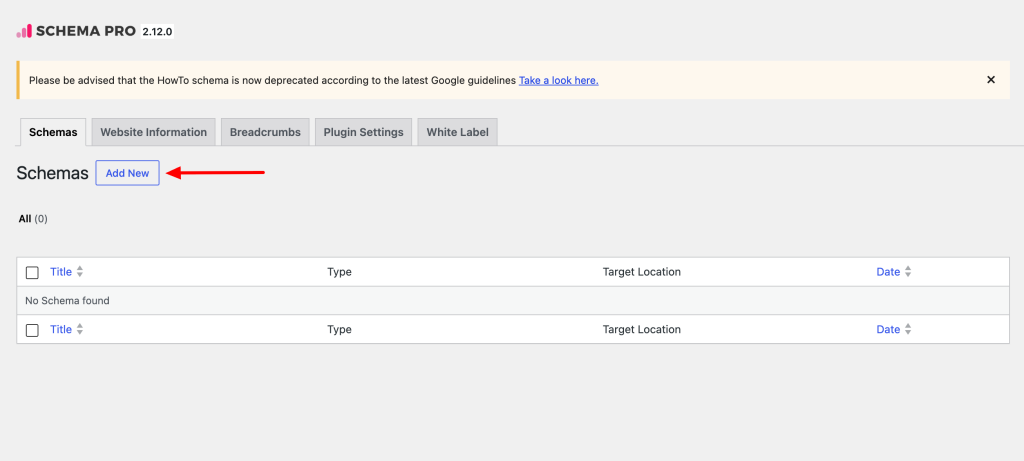
Step 1. Create a new Schema markup by going to the Schema Pro option under WordPress Dashboard > Settings > Schema Pro. Click on “Add New”.
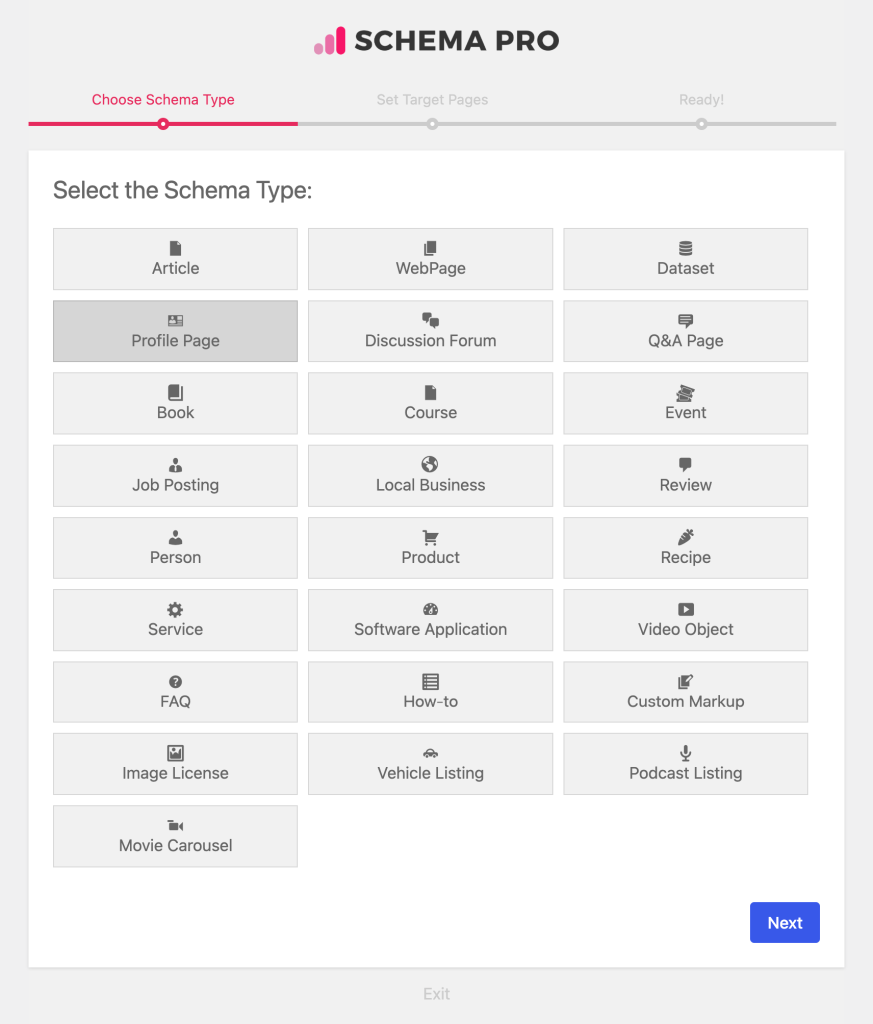
Step 2. Select the type of schema as “Profile Page”.
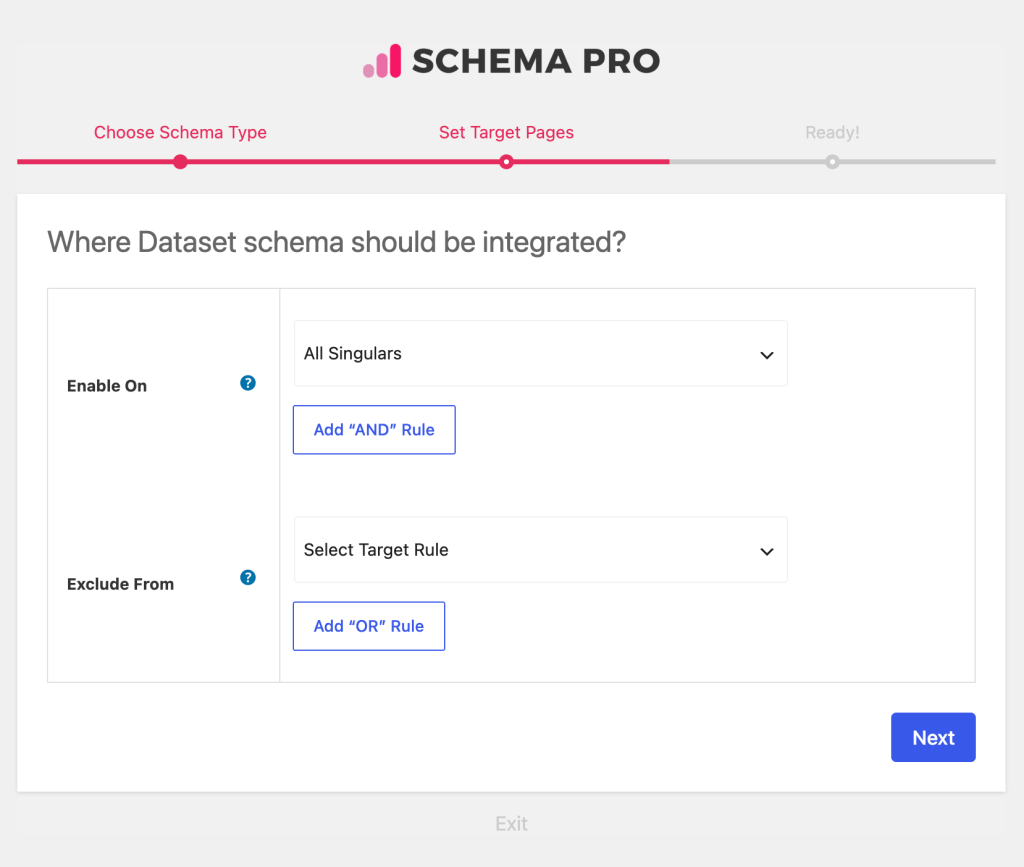
Step 3. Select the pages/posts that you want to apply this markup to. You can add display rules and also exclude pages and posts you want to exempt this schema from.
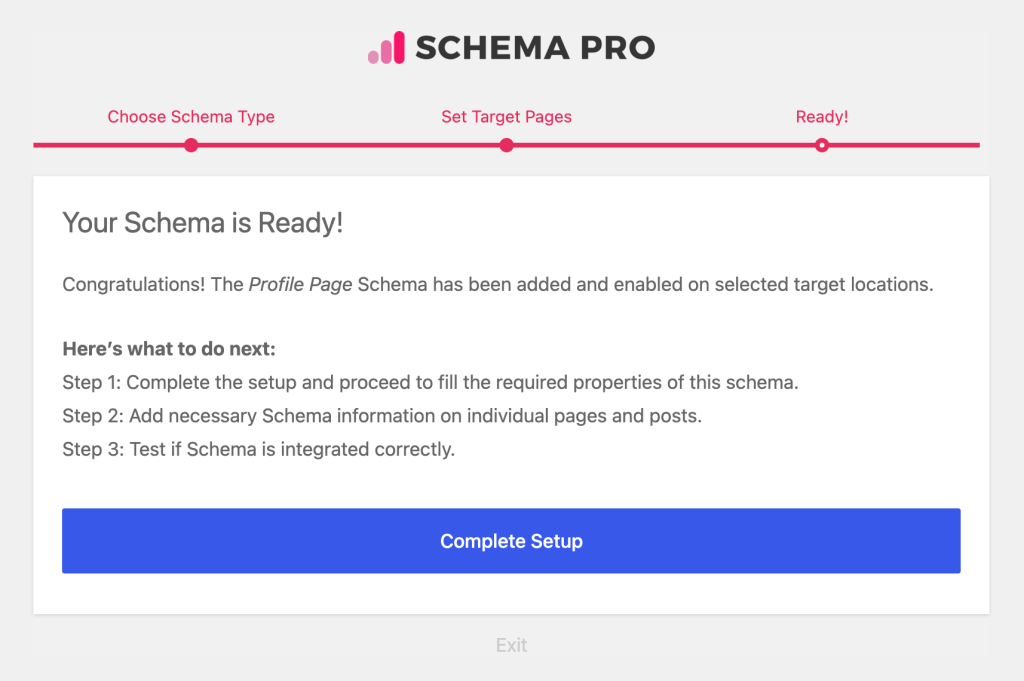
Step 4. You can then complete the setup. From here you will be taken to fill the required properties of the schema.
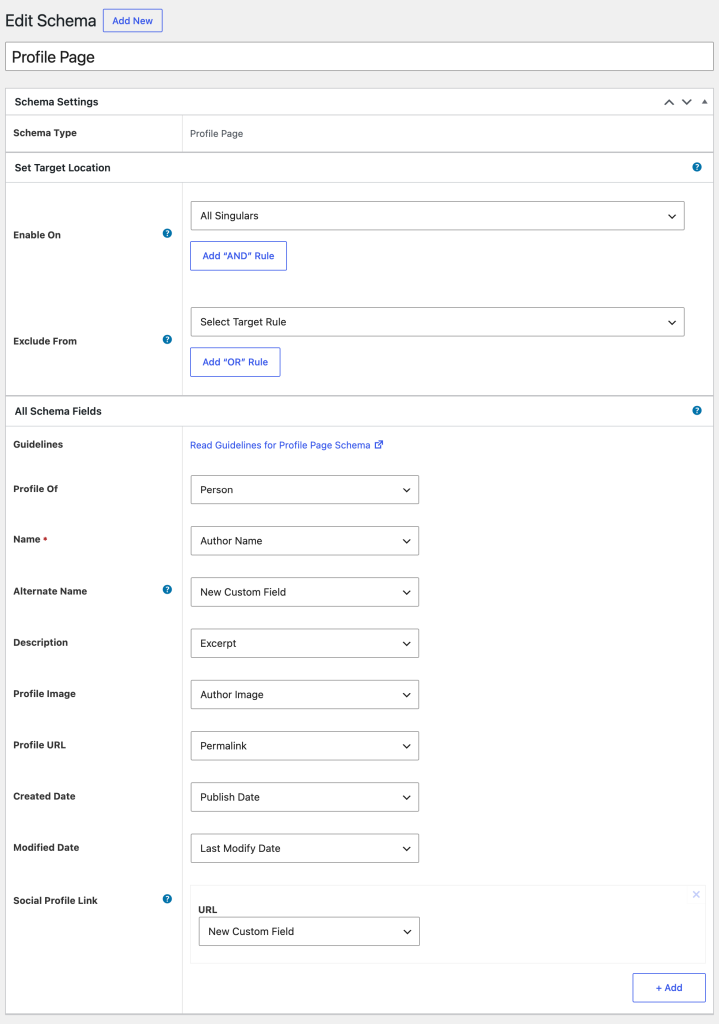
Step 5. In Schema Settings, you will see various fields related to Profile Page schema. These fields help you enter details about the person or organization the profile represents. We recommend you make sure that all schema fields are set to the right values.
What Do These Fields Mean?
Let’s look at what all the Profile Page schema fields mean so that you can fill in the correct values.
In the following table:
- Asterisk sign (*) indicates required fields. These fields are required by Google and if not filled out will result in an error in the Rich Snippets Test.
- Caret sign (^) indicates recommended fields. These fields are recommended to ensure maximum utilization of the SEO benefits of Schema Pro.
| Fields | What They Mean |
|---|---|
| Name * | The primary name of the person or organization this profile page is about. |
| Date Created ^ | The date when this profile page was first created. Use ISO 8601 format, e.g. 2024-01-15. |
| Date Modified ^ | The date when this profile page was last updated. Use ISO 8601 format. |
| Description ^ | A short bio, byline, or applicable credential for the person or organization. |
| Alternate Name ^ | An alternate public identifier such as a username or social media handle. |
| Image ^ | A URL or ImageObject for the profile image of the person or organization. |
| Same As ^ | URLs to other external profiles, social media pages, or official websites for this person or organization. |
| Identifier ^ | A unique identifier used to represent this person within the site. |
| Interaction Statistic ^ | Statistics about interactions with the person’s profile, such as number of followers. |
| Agent Interaction Statistic ^ | Statistics about the actions this person takes on the site, such as number of posts written. |
Configure Schema on a Single Page/Post
Once you fill the above schema fields, the values will be applied to all target locations. These values are common for all target locations.
But in case you wish to alter these values for a particular page/post, you can also find all the schema fields on each of the targeted pages/posts.
If you visit a single page/post you can see all Profile Page schema fields at the bottom. By default, all fields will fetch values from the schema under Settings > Schema Pro > Profile Page, but you can also change this and choose other values from the list or set the values manually.
Test Your Schema
Once you are done adding schema markup, test it to see if it is set up correctly.
Testing can be done with just a single click using the “Test Schema” button on the admin bar.
OR
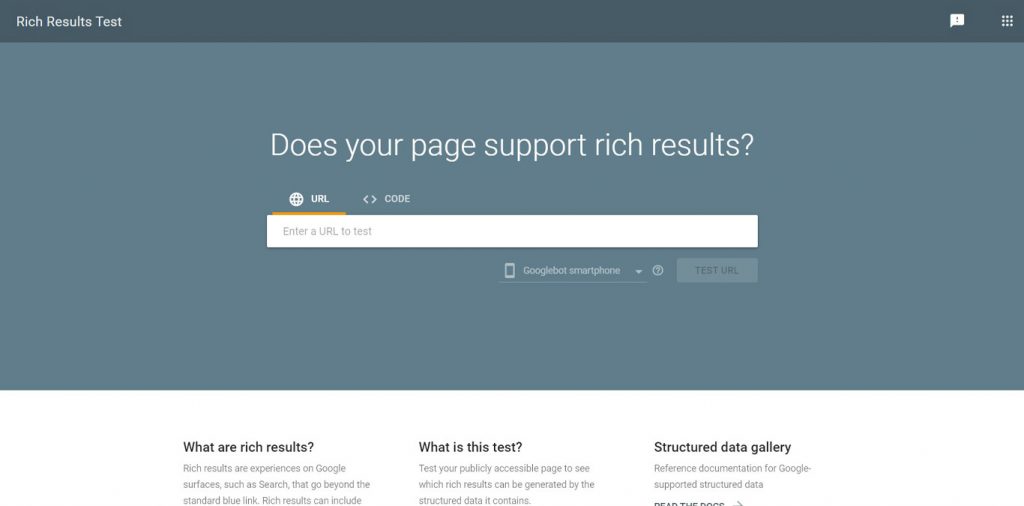
You can manually visit the Rich Results Test tool or the Schema Markup Validator and insert your page URL.
How to Handle Errors & Warnings in a Testing Tool?
When you test your page/post with the Rich Results Test tool, you might see some errors or warnings come up. Here are the most common ones:
- Missing required field: The Name property (person or organization name) is required. Make sure this field is mapped correctly.
- mainEntity not found: Schema Pro wraps the Person/Organization inside the mainEntity property of the ProfilePage automatically. If this error appears, verify the schema was saved and the page matches your location rules.
- Invalid date format: Date fields must use ISO 8601 format, e.g. 2024-01-15T10:30:00+00:00.
- Schema not appearing: Confirm the schema location rules match the page you are testing and that the page has been saved after making changes.
If you encounter other issues, contact our support team.
We don't respond to the article feedback, we use it to improve our support content.