
- Add an Extra Field for a Schema Type
- Enable/Disable Schema Markup
- Add Ratings Using Shortcode
- Disable a Specific Schema Markup
- Add Schema Markup on Subcategories
- Disable the White Label Settings
- Disable Corporate Contact Schema
- Remove Home List Item from Breadcrumblist Schema
- Remove Shop Item Link on Product Page
- How to Export and Import Schema Pro Data
- What is the future of Schema Pro now that SureRank has launched?
- How to Use Schema Pro with SureRank
- Test a Schema Snippet
- Mapping Your Schema Fields
- Add an Extra Field for a Schema Type
- How to Use the Schema Pro plugin?
- All-in-one Schema Pro plugin
- Map Required fields with Custom Fields
- Create a Custom Fields
- Target Specific Areas of the Website
- How to Add a Schema markup for an Article on your website?
- Difference Between the Free and Pro Plugin?
- How to map fields with custom fields from third party plugins?
- Accept User Ratings from Users
- Update Schema Pro
- Register Your Copy of Schema Pro
- Organization Type in the Setup Wizard
- Schema Pro Setup Wizard
- Getting Started With Schema Pro
- How To Install Schema Pro Plugin
- Schema Markup for a Dataset Page
- Schema Markup for a Profile Page
- Schema Markup for a Discussion Forum Page
- Schema Markup for a Q&A Page
- Schema Markup for an Event page
- Schema Markup for a Review page
- Schema Markup for a Local Business Page
- Schema Markup for a Service Page
- Schema Markup for a Product Page
- Schema Markup for a Course page
- Schema Markup for a Recipe Page
- Schema Markup for a Person/ About Page
- Schema Markup for a Job Posting Page
- Schema Markup for a Video Object
- Corporate Contact Markup
- Schema Markup for Book Page
- Schema Markup for Software Application Page
- Schema Markup for a FAQ Page
- Schema Markup for a How-To Page
- Schema Markup for Article Page
- FAQ Schema Type & FAQ Schema Pro Block
- FAQ Schema Pro Block for Gutenberg
- Schema Markup for a Vehicle Listing Page
- Schema Markup for a Podcast Listing Page
- Schema Markup for a Movie Carousel Page
- Schema Markup for a WebPage
Schema Markup for a WebPage
If you want search engines to better understand and display your web pages in search results, adding WebPage schema markup is the way to go.
WebPage schema helps search engines identify the type and purpose of your pages, whether it’s a general page, a collection/listing page, an about page, or a contact page. This structured data enhances how your content appears in search results.
Schema Pro makes it easy to add WebPage schema markup to your WordPress pages and posts.
Let’s see how to add a WebPage schema with easy steps.
How to Add the WebPage Schema Markup?
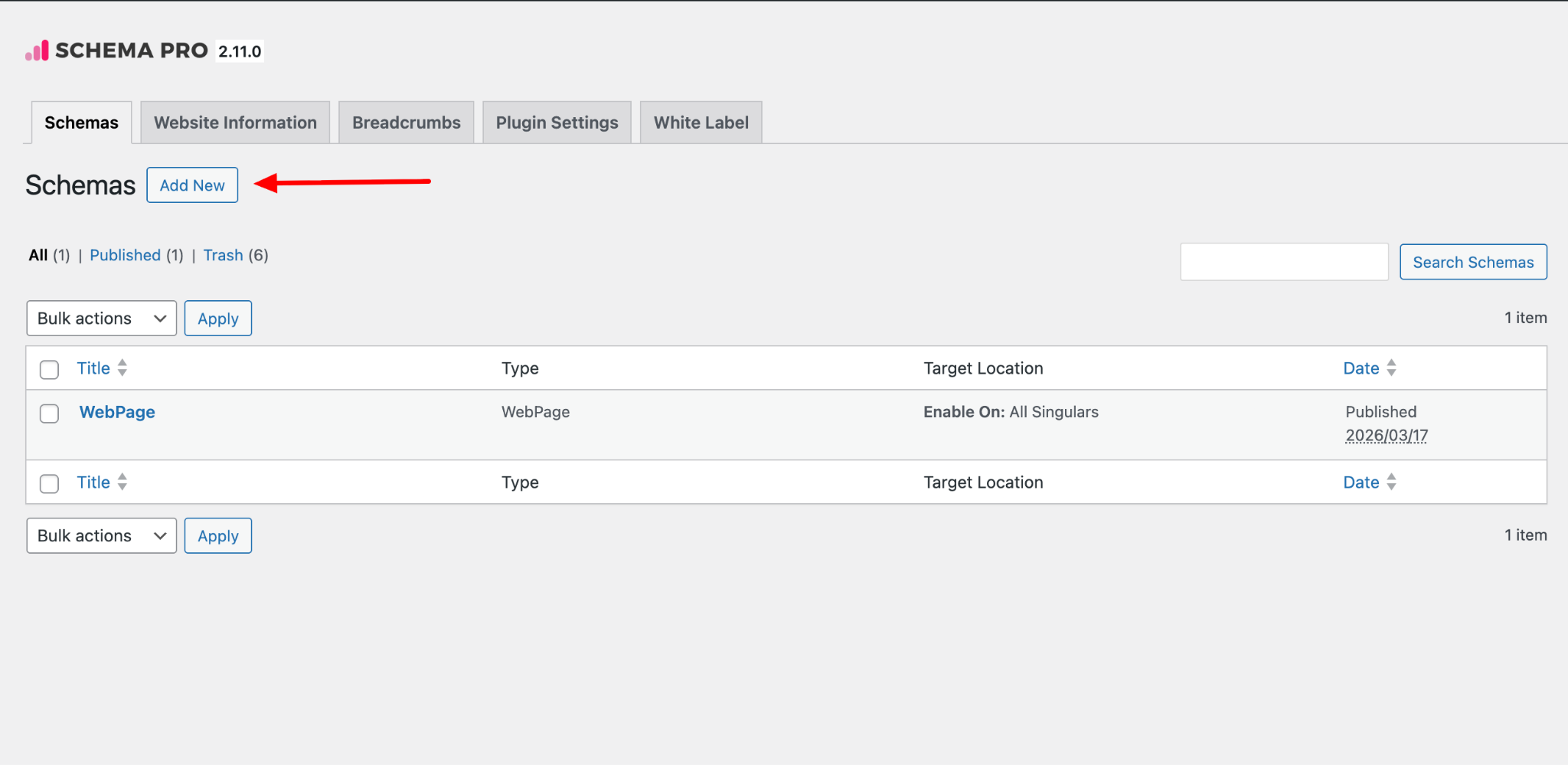
Step 1. Create a new Schema markup by going to the Schema Pro option under WordPress Dashboard > Settings > Schema Pro. Click on “Add New”.
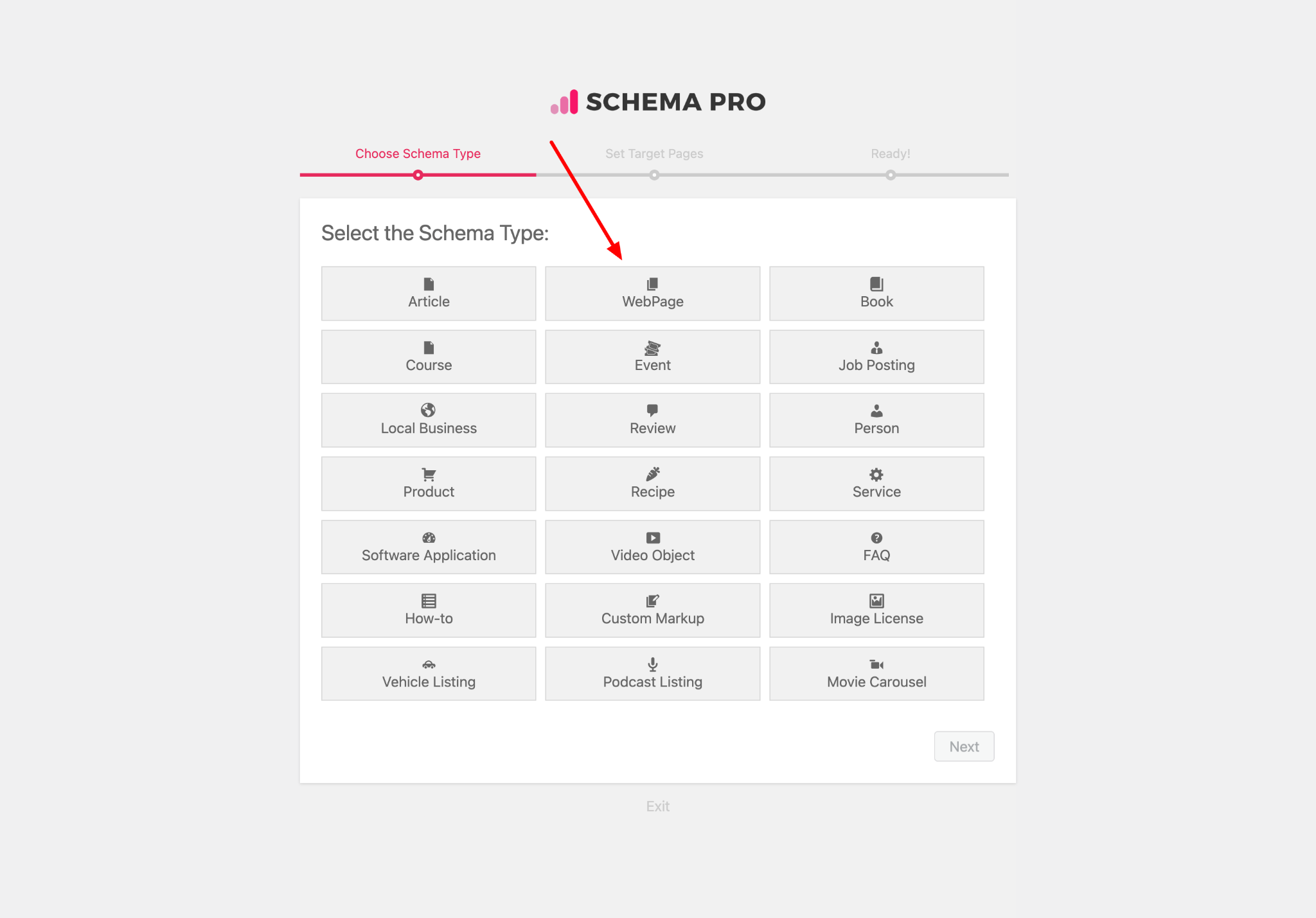
Step 2. Select the type of schema as “WebPage”.
Step 3. Select the pages/posts that you want to apply this markup to. You can add display rules and also exclude pages and posts you want to exempt this schema from.
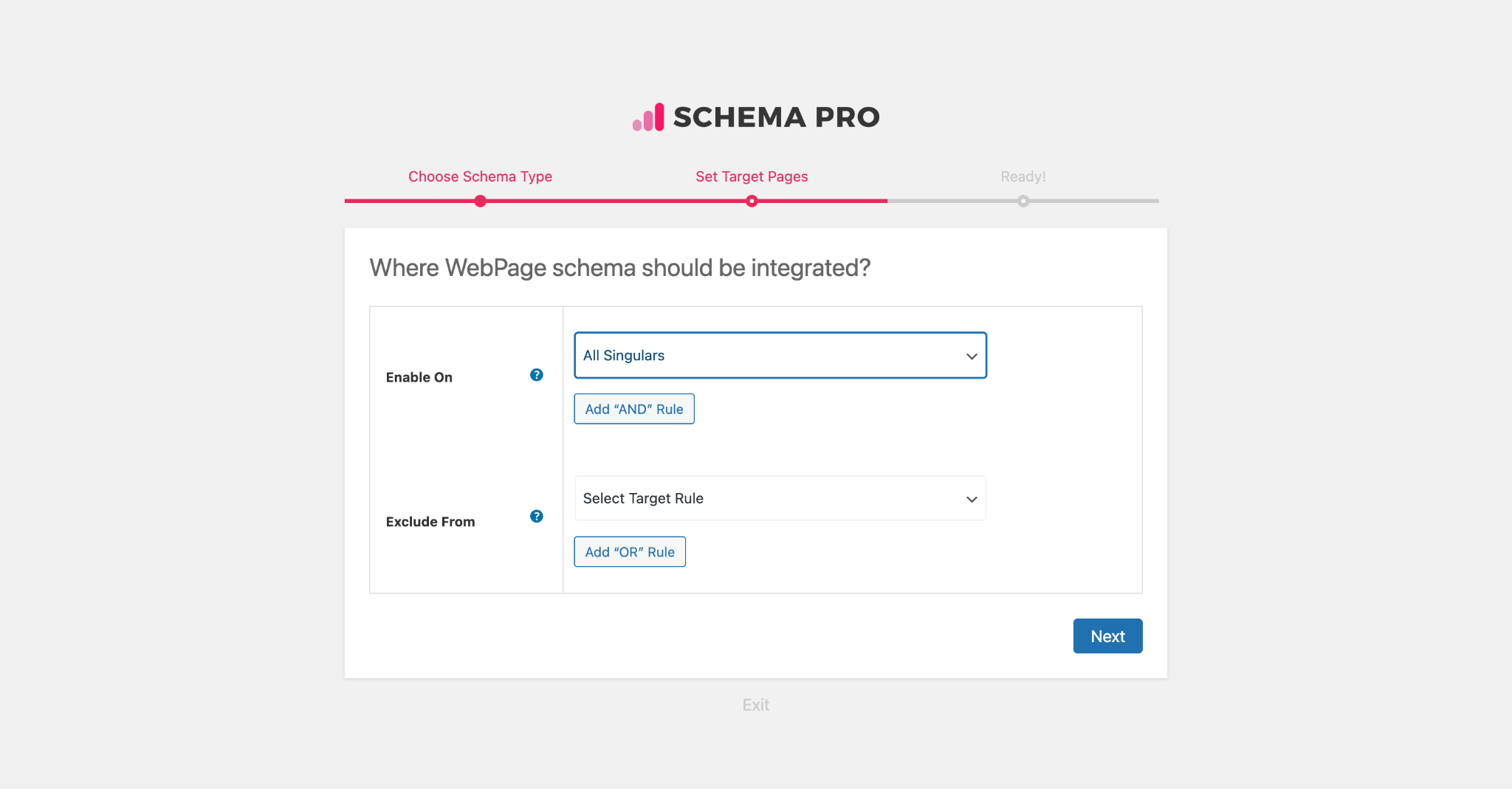
If you want to know more about how you can target specific pages and posts, check out our article on it.
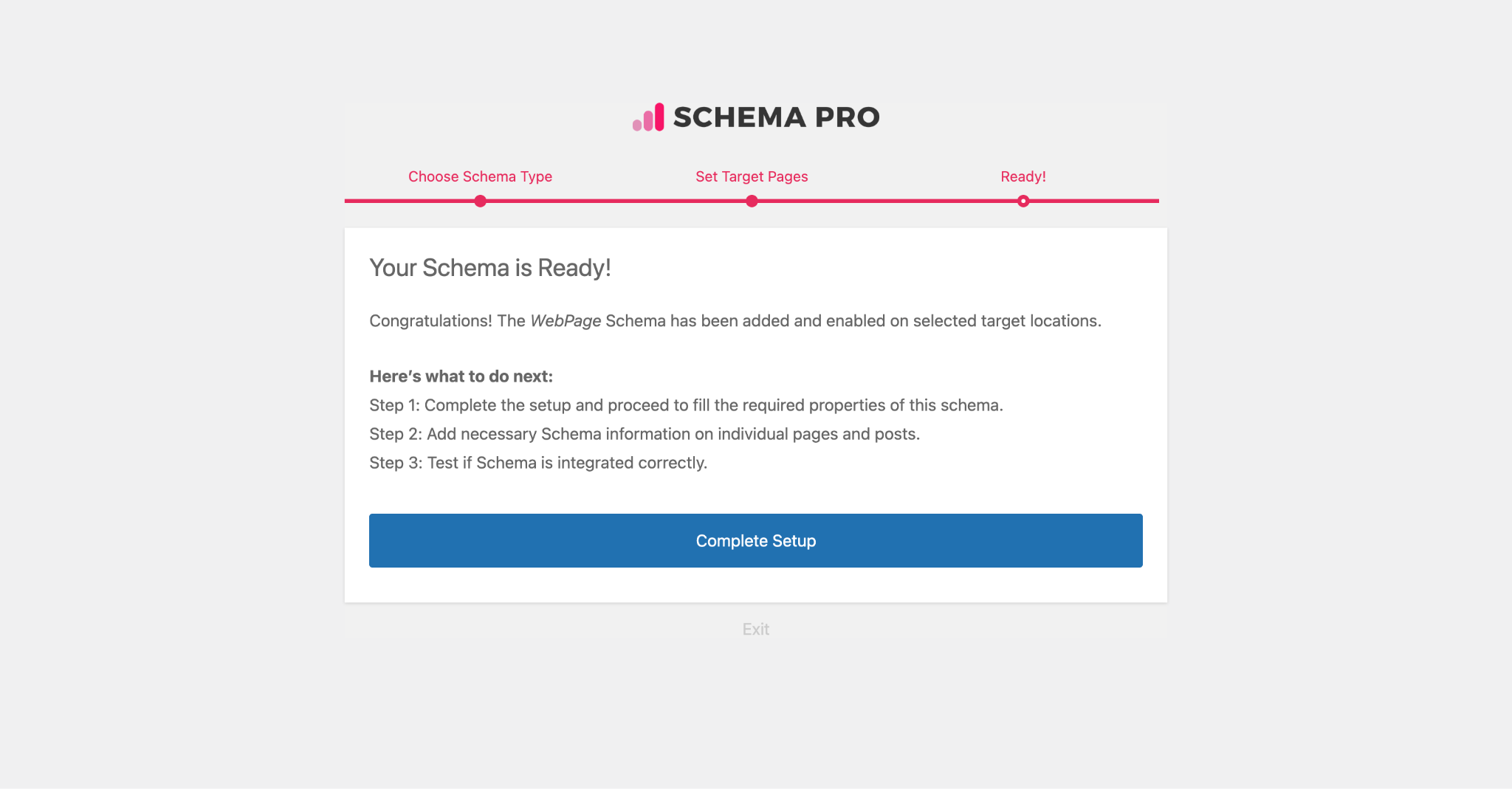
Step 4. You can then complete the setup. From here you will be taken to fill the required properties of the schema.
Step 5. In Schema Settings, you will see various fields related to WebPage schema. These fields help you enter details about your web pages. We recommend you make sure that all schema fields are put on the right values.
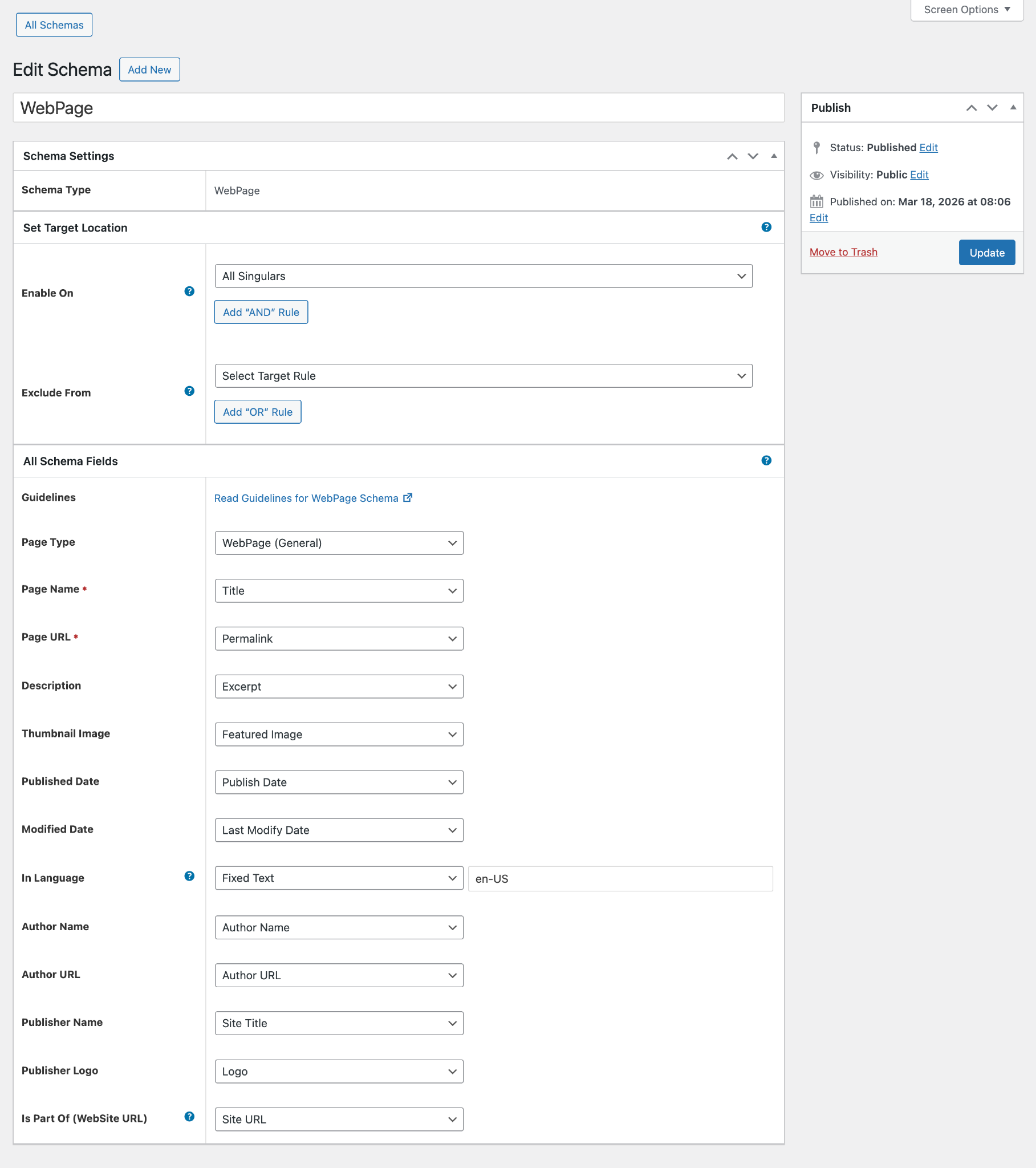
Check out the next section to understand all available fields in the WebPage schema markup.
What Do These Fields Mean?
Let’s dive into what all the WebPage schema fields mean so that you can fill in the correct values.
In the following table:
– Asterisk sign (*) indicates required fields. These fields are required by Google and if not filled out will result in an error on the Rich Snippets Test.
– Caret sign (^) indicates the recommended fields. These fields are recommended to ensure maximum utilization of the SEO benefits of Schema Pro and will increase your chances of displaying Rich Snippets.
| Fields | What They Mean |
| Page Type | Select the specific type of web page. Options include: WebPage (General), Collection Page (for pages listing multiple items, e.g., product listings or archive pages), About Page (for pages describing an organization or person), and Contact Page (for pages with contact information). |
| Page Name * | This is the name/title of the web page. You can map this with the page/post title or a custom field. |
| Page URL * | The URL of the web page. By default, this maps to the page/post permalink. |
| Description ^ | A short description of the web page. You can map this with the page/post excerpt or a custom field. |
| Thumbnail Image ^ | The main image representing the page. By default, this maps to the featured image. |
| Published Date | The date when the page was first published. By default, this maps to the post published date. |
| Modified Date | The date when the page was last modified. By default, this maps to the post modified date. |
| In Language | The language of the page content in BCP-47 format (e.g., en-US). By default, this maps to the site language. |
| Author Name ^ | The name of the page author. By default, this maps to the post author name. |
| Author URL | The URL of the author’s profile or website. By default, this maps to the author URL. |
| Publisher Name ^ | The name of the organization or person publishing the page. By default, this maps to your site name (blogname). |
| Publisher Logo | The logo of the publishing organization. By default, this maps to the site logo. |
| Is Part Of | The URL of the parent WebSite this page belongs to. By default, this maps to your site URL. This helps search engines understand the relationship between your page and your website. |
Not sure how you can fill these fields? You can refer to this article that gives you a clear picture of the fields you see in the drop-down menu.
With Schema Pro you can also add extra or custom fields to your markup. Check out this article to find out how.
Which Page Type Should I Choose?
Schema Pro supports four WebPage variants. Here’s a quick guide:
- WebPage (General): Use this for standard pages that don’t fit into the other categories. This is the default and works for most pages.
- Collection Page: Use this for pages that list or aggregate multiple items, such as product listing pages, blog archive pages, or category pages.
- About Page: Use this for your “About Us” or “About Me” pages that describe an organization or person.
- Contact Page: Use this for your “Contact Us” pages that contain contact information, forms, or communication details.
Configure Schema on a Single Page/Post
Once you fill the above schema fields, the values will be applied to all target locations. These values are common for all target locations.
But in case you wish to alter these values for a particular page/post, you can also find all the schema fields on each of the targeted pages/posts.
If you visit a single page/post you can see all WebPage schema fields at the bottom.
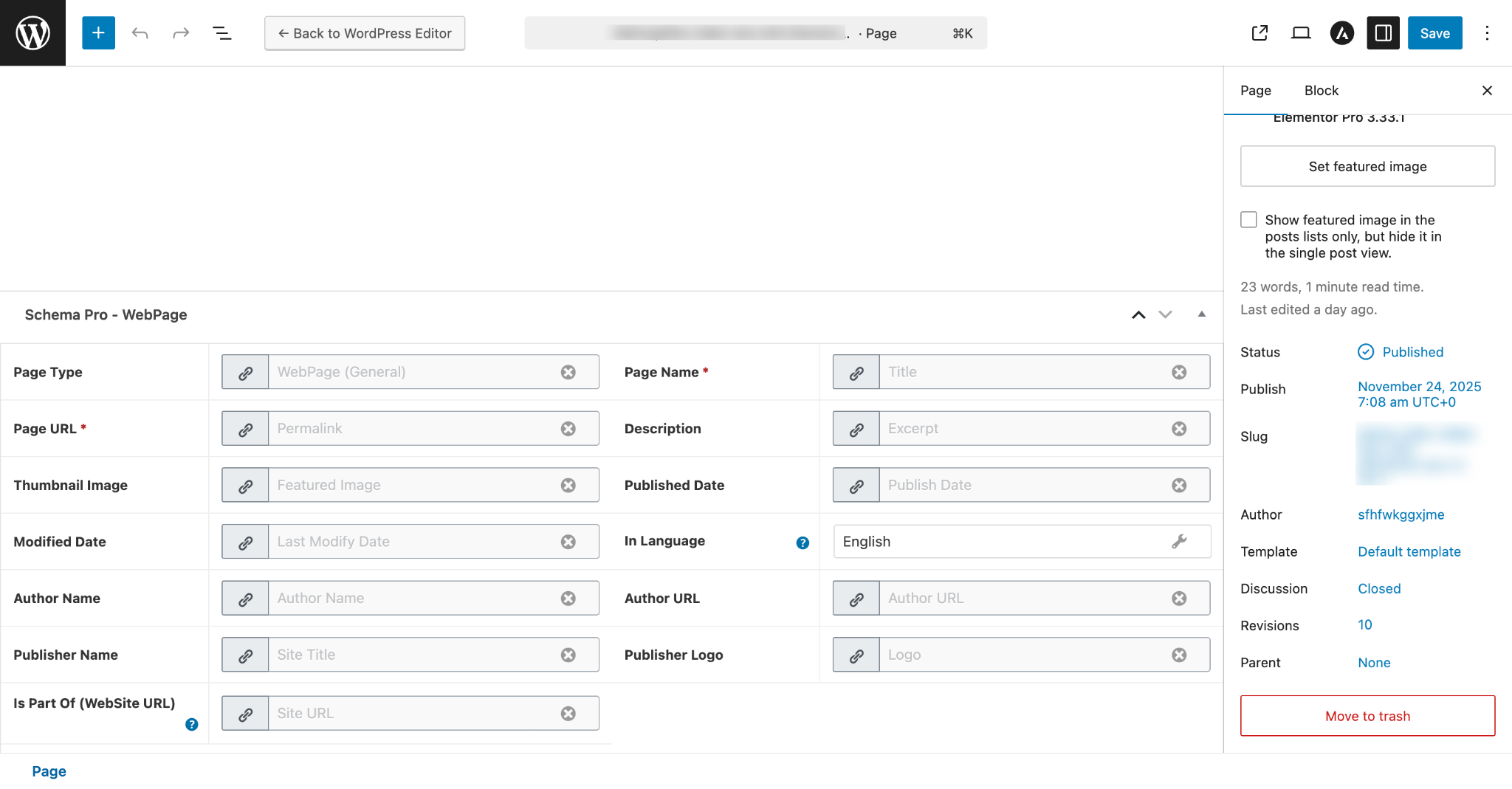
By default, all fields will fetch values from schema under Settings > Schema Pro > WebPage but you can also change this and choose other values from the list or set the values manually.
You might see some of the fields marked in red, these are required fields in the schema that do not have any value. Skipping these fields will add invalid schema markup to the code. Read this article to learn more about the page-level schema configuration.
Test Your Schema
Once you are done with adding schema markup, test it to see if it sets well.
Note: WebPage schema is not a Rich Result type, so it will not appear in Google’s Rich Results Test. To validate your WebPage schema, use the Schema.org Validator instead.
You can visit the Schema.org Validator and insert your page URL or code snippet to confirm the markup is correctly implemented.
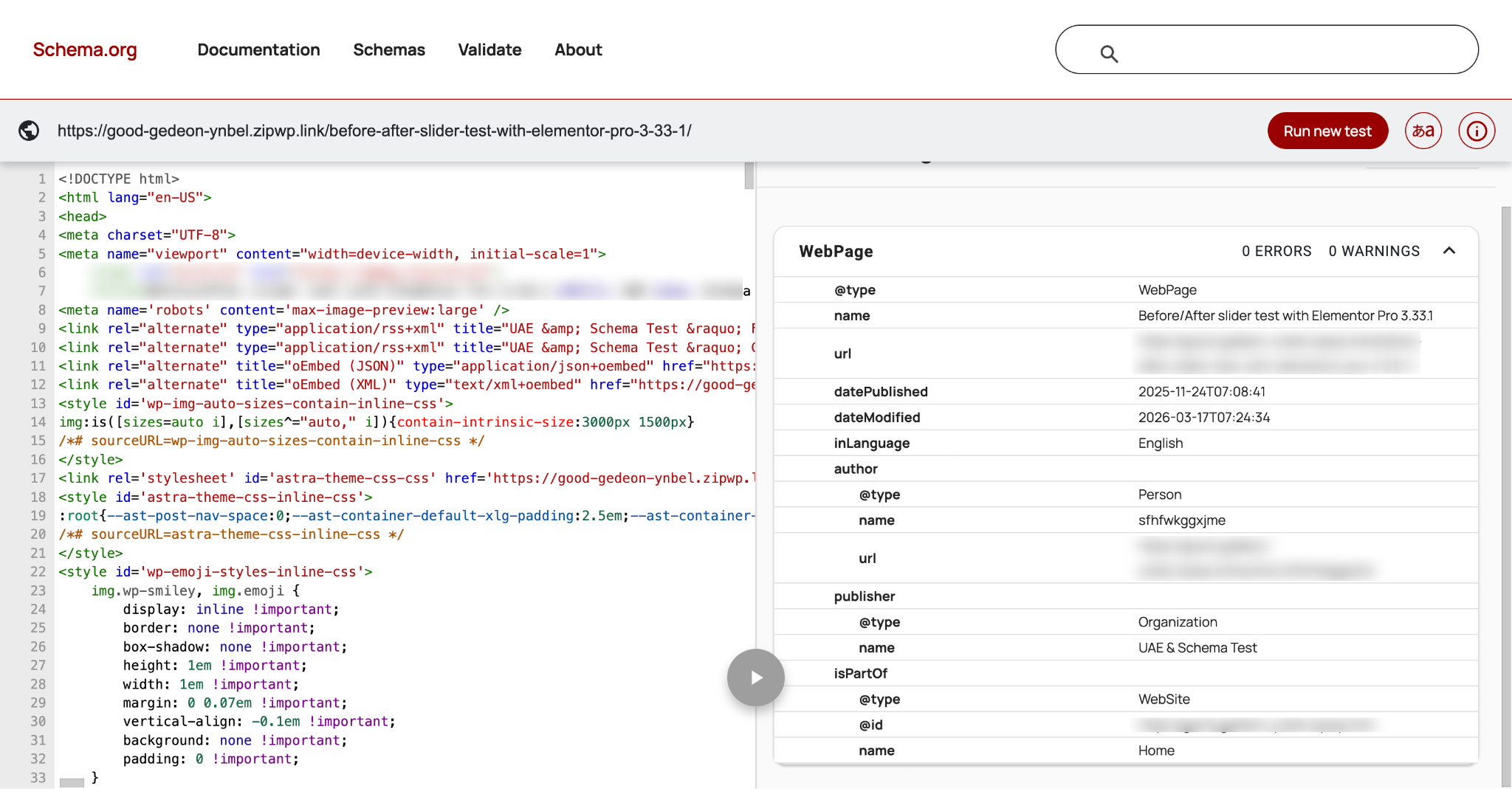
Once you’re done, you’re all set to have search engines better understand your web pages and improve your visibility in search results!
How to Handle Errors & Warnings in a Testing Tool?
When you test your page/post with the Rich Results Test tool in this case Schema.org Validator you might see some errors and warnings come up. Refer to this article to see detailed steps to easily fix errors and warnings.
We don't respond to the article feedback, we use it to improve our support content.